
How to Set the Default Language for Your Loyalty Program on meed

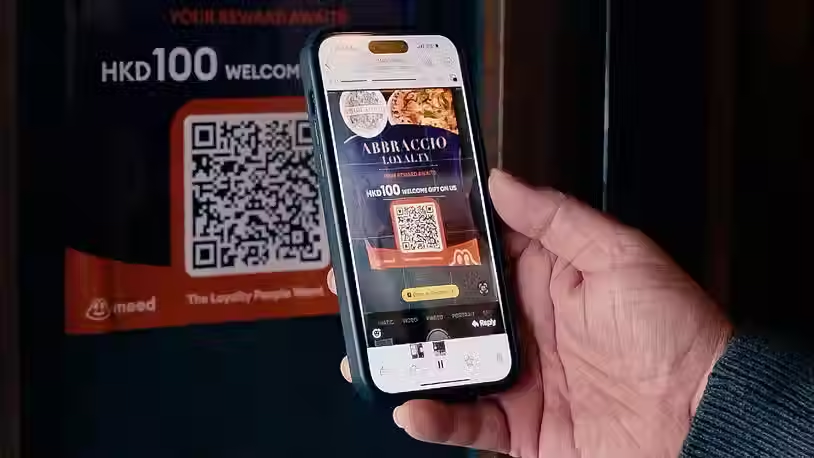
When you create your digital stamp card and loyalty program on meed, you can determine which language your customers see when they scan your QR code or tap your NFC card to join.
This choice affects the interface for consumers, not the content you type, such as the loyalty program name or description.
Read below to discover how to set the default language for your meed loyalty program..
How it Works
When a customer scans a QR code in your store or clicks a link on your social media to join, the system checks the default language setting. The interface consumers see in their web browser will be the one you chose.
However, if the consumer has already joined a program on meed and previously chose a language in their mobile browser, then that will override your choice.
The net effect is that the consumer can instantly interact with your program, even if their language differs from yours. This makes meed as inclusive as possible for all.
How to Set the Default Language for Your meed Loyalty Program
Log in to the Meed Business Portal, where you manage your loyalty program.
You will land on the overview page. Click Edit/View Loyalty Program & Card Rewards.

Under Introduce your Loyalty Program and above Industry, you will see the Language Preference drop-down.
If not previously set, the default will be English.
Choose the language you want.

Scroll to the bottom of the page and click the big orange button to lock the setting.
Note: if you are creating a new program, the button will read Launch your loyalty program. If you are updating or setting the language for the first time, it will read "Update Loyalty Program".
Create your own loyalty program and digital stamp card right now. Click here for more info and to use our express onboarding wizard.


Comments