
Launching Your meed Loyalty Program in Under 5 Minutes

A Step-by-Step Walkthrough
This is your quick cheat sheet on how to set up your loyalty program on meed.
It's bulleted and to the point. You can also check out the longer form version here.
You will need:
Your logo
A picture for each reward, a minimum of one, you want on your stamp card
NOTE: You can upload temporary images and then come back later to replace them
1. Create Your Account

Go to portal.meedloyalty.com and click the "Sign-up for free" button in the top right-hand corner.
Enter your email to begin the process. You will be sent a one time password and then asked for:
Your name (first name is fine)
Organisation (the name of the company that will be billed if you upgrade)
A password, entered twice for security
When the congratulations message appears, click "Go to Business Portal".
That's the account set up. Welcome aboard!
2. Create Your Loyalty Program and Stamp Card
It takes just one form to create your entire loyalty program, and if you have the images you need to hand, it won't take long at all.
Note, as you fill it in, the preview of your Apple / Google pass on the right will update.

About your Loyalty Program
Give your program a name, e.g. Bob's Coffee Rewards, or Pizza Bucks
Give the descriptive blurb. This should include a bit about your business, how the stamp card works, and any rules you want people to know
Choose your industry from the dropdown
Create your first location by clicking on the + sign and entering the following in the pop-up.
The business name - literally the name people see over the door as they walk in
Location Label - this is for internal use only, so you can tell locations apart at a glance in analytics
Street Address - we recommend we use exactly what is shown on your POS receipts to enable advanced meed features later
Country (which should be preselected unless you are using a VPN)
Logo
Click Save. You will now see the location shown. You can enter more if you want by clicking "Enter Location"
NOTE: This is the logo for your location. You are about to upload the logo for your loyalty program in a minute - these might be the same, or they might be different, it doesn't matter - we just want to offer full flexibility for chains with multiple brands.

Logo, Links and Base Colour
Upload the logo to use for your loyalty program. This is the logo that will show on Apple and Google Passes. If it's the same as any or all of your location logos, it's fine to re-upload. The system will force a crop to a square image.
OPTIONAL: Click on "Rectangular Logo" to upload a landscape logo, which will not format in a square. If you do this, then only the logo will show on Apple & Google Passes. The name of your loyalty program will no longer appear.
OPTIONAL: Add an Extra Link, which will appear on the back of your Apple & Google Passes. The Link Name will be clickable, opening the web page in the Link URL. For example, "See our menu", linking to the URL of your menu online.
Choose your Base Colour. This is the colour of your Apple & Google Passes and the main spot colour for your loyalty program and rewards. You can use the selector or just enter a HEX code. This can be edited later.

Configure Your Stamp Card
Choose how many stamps are in the card, e.g., buy 9 get 1 free means you should choose nine stamps
Choose which stamp positions will generate a reward. The final stamp MUST do so. You can make as many or as few of the other stamp positions that generate a reward as you like. Toggle on and off with a click.
Each reward slot on your stamp card is listed below. For each one, click the dropdown marked "Select a reward" and either choose an existing reward or "Create NEW Reward". You can use rewards in more than one stamp slot.
Creating a Reward
Click Create New Reward from the Select Reward dropdown. The reward creation dialogue appears.
Choose either Discount (percentage), Cash Voucher or item
Give the reward a name, e.g. "Big Discount" or "Free Coffee"
For a discount, enter the discount amount; for a cash voucher, enter the amount and verify the currency is correct. No additional information is required for an item redemption.
Describe the reward. E.g., "Redeem this reward for our free earplugs. We promise you won't hear a thing!"
Upload an image of the reward. This will be cropped to a square
Check the preview to ensure it looks right
Click Save
Launch Your Program
Read through the form again to make sure everything is correct, and if so...
Click "Launch Loyalty Program"
CONGRATULATIONS!! Your meed loyalty program is live.

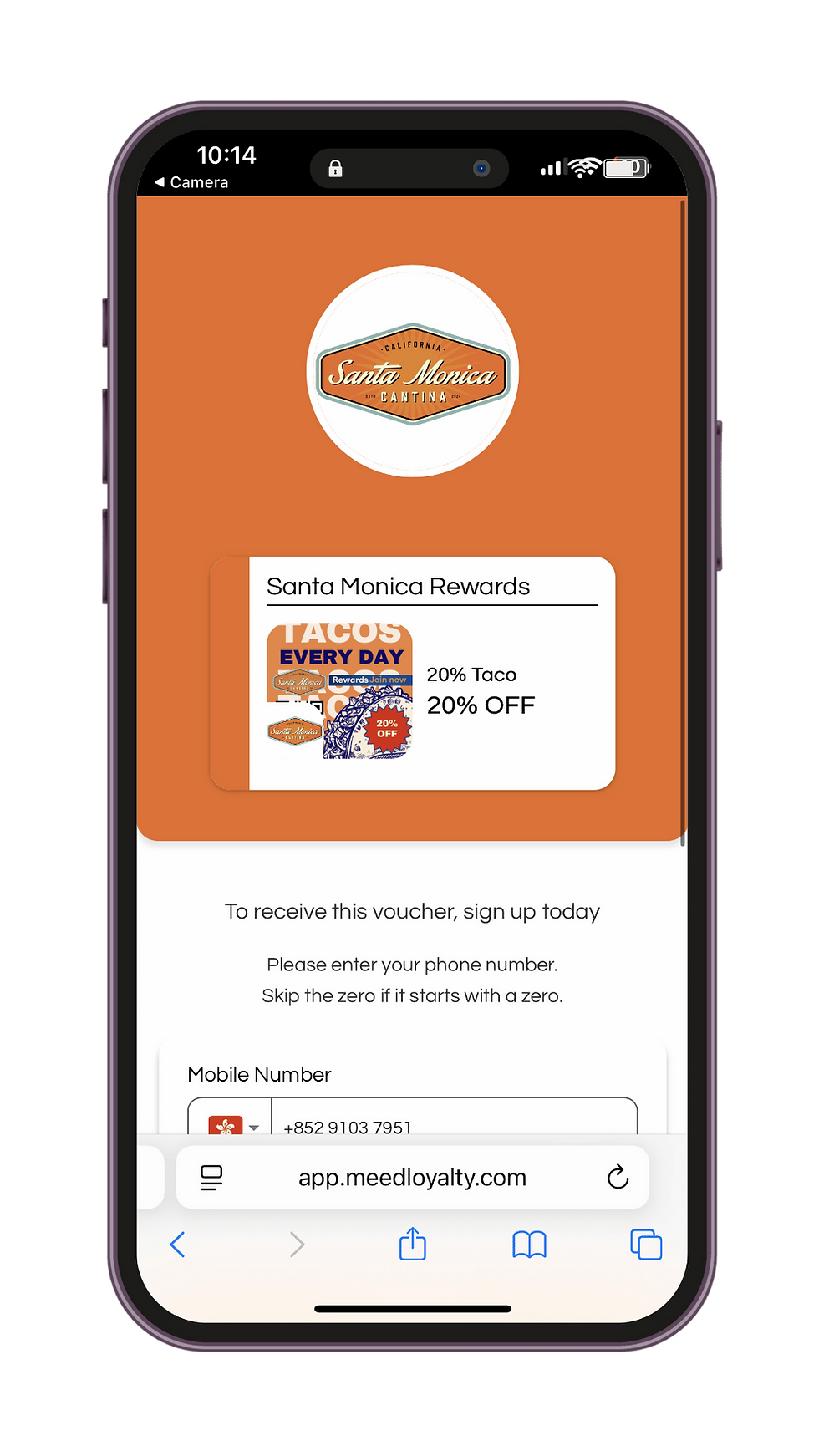
Your all-purpose QR code will appear on the screen. Grab your phone, scan the QR and be your own first member!
Click close, and you will be taken to the overview where you can:
See your new stamp card
An invitation to create a Welcome Coupon (we highly recommend you do that next)
Your join anywhere QR code
The Quick Actions menu, where you can grab advanced QR codes for tracking and special actions, and the meed App, which you can use for manual stamping.


Comments