
Using QR Codes and Links to Get Members to your meed Program

As soon as you have finished creating your loyalty program and digital stamp card on meed (read this article to see how), the next step is to get some members. meed offers some really powerful options for this!
After logging in, you will land on the Overview page. You can always navigate to the Overview page by clicking Overview in the left-hand main menu bar.

The top section of the Overview page, above the analytics, is divided into three columns.
Your current live stamp card
Your welcome offer
The new Quick Action Panel.
We will focus on the new Quick Action panel, your central hub for onboarding new members to your program.
Quick Actions
The Quick Actions Panel is divided into three rows:
Get Members with QR Codes, Links & Posters
Auto-Stamping QR codes (where the customer gets a stamp or stamps without you having to do anything)
Stamp & redeem - which means using the meed App.
Let's go through what each one means, one by one.

Get Members
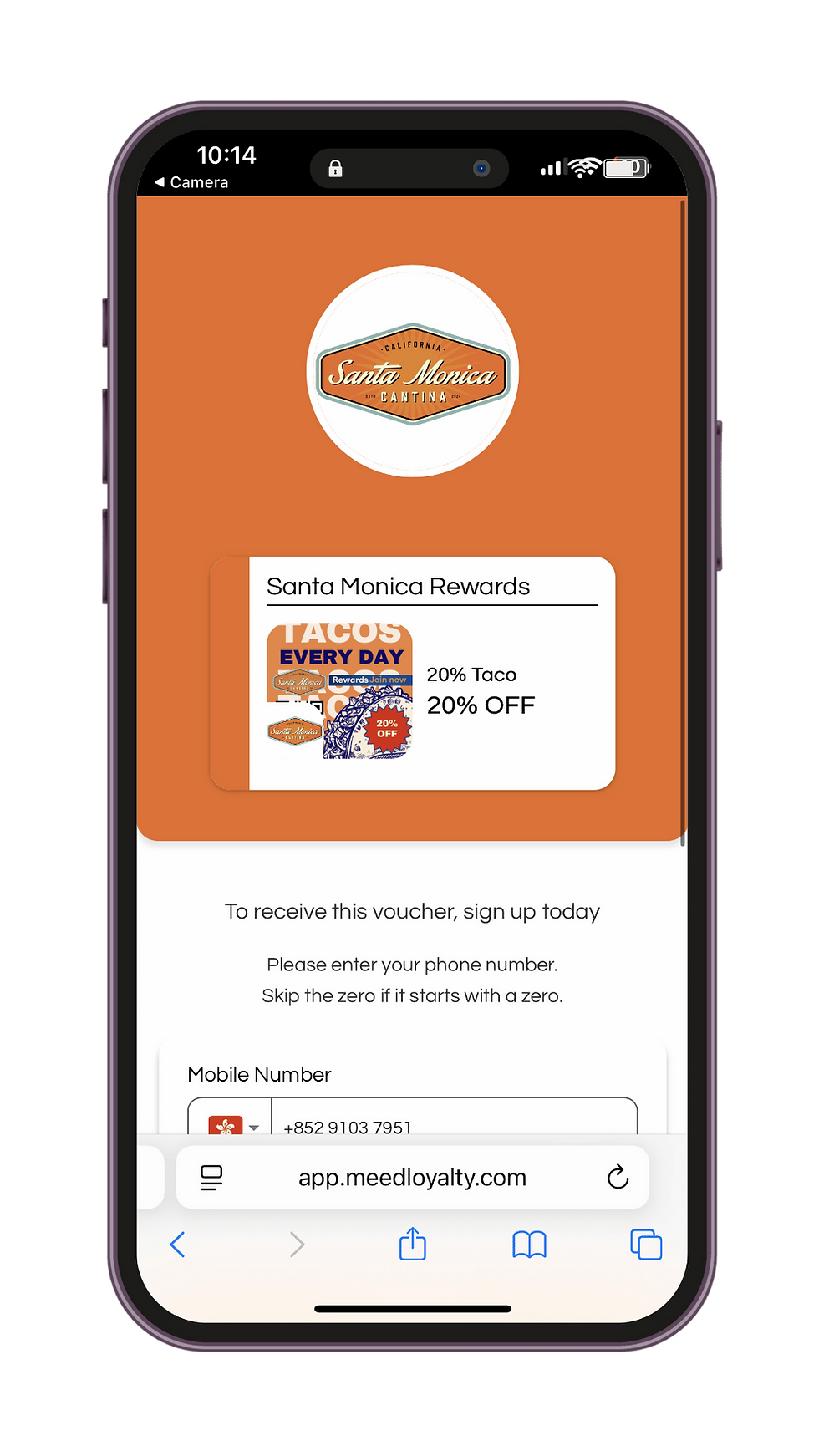
These are QR codes or links that, when scanned, clicked, or tapped (with NFC tags), lead to the page where your customers join. Both Join Anywhere and Join in-store do the same thing, with one difference.
Join Anywhere does not track location data; it simply directs your customer to join your program. Just click the button, and then grab the QR code, link or poster as you need (more on that below)

Join In-Store adds one piece of information: the location where it was used. These are designed to be used in your physical outlets, that is, the locations you set up in your loyalty program. Before you can download a code or copy a link, you must choose the location where it will be used.

Auto-Stamping
Now, for the clever QR codes and links.
Checkin
Checkin is a self-service option, ideal for specific situations. It operates just like the In-Store code: after creating a membership or logging the consumer in if they are already a member, it awards one stamp to the user. This is limited to one stamp per location per day by default.

This is very useful if one visit is worth one stamp. Some examples:
Attending a fitness class
Rush hour at a coffee shop and purchasing only one drink
Attending an event
Checkin works best if you embed the link in an NFC chip. There are free smartphone apps that can do that in a few seconds. We don't recommend using Checkin with a QR code, as people can photograph it and cheat.
Scan
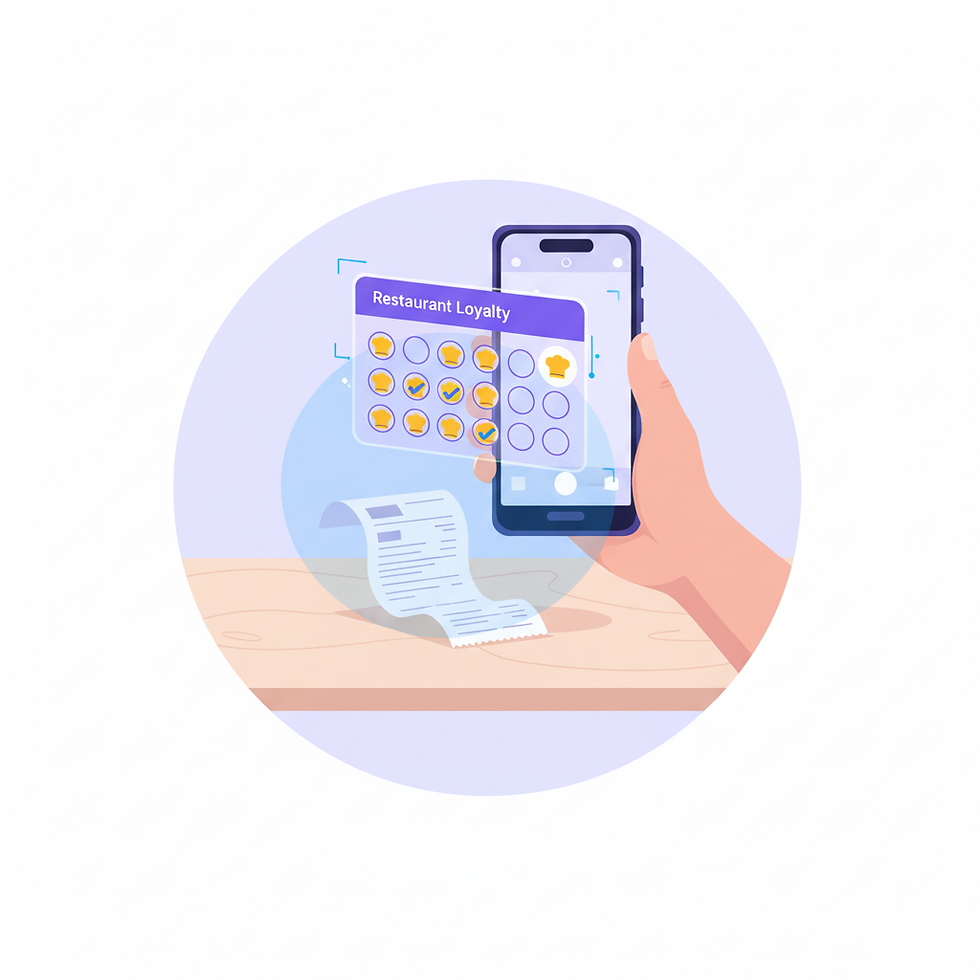
Scan is also an extension of the In-store QR code and link, in that it creates a member, logs them in, and notes which location is on the QR code. After that, it opens a dedicated scanner page on the consumer website, which captures the receipt and applies stamps based on the formula you set. You can place a different stamping amount for various locations, even different currencies, if your locations are in more than one country!

Whichever of the four options you choose - Join Anywhere, Join In-Store Checkin, or Scan, you now have four output options, and these output options are the same for all.
Output Options
Your four options are:
Download the raw QR code Use this if you are creating your own posters
Copy the link to your clipboard to paste somewhere Use this if you are posting to social media
Make and Print a Poster
Use a Canva Template
The first two give you the raw asset - e.g., the QR code or the actual link.
The second two go a bit further.
Make and Print a Poster
If you click this, the box will expand slightly, and you will see the poster UI. This is really simple.

Upload an image for the background.
Download either a PNG or a JPEG.
Note: We are developing the poster feature to allow more control.
Use Canva Template
If you have a Canva account (and it's free to start) then you can use our templates on Canva. First, download the QR code, then click one of the following options:

An A4 poster for your QR code
An A5 Poster for your QR code
A Poster to which you can affix an NFC tag.
For all these templates, you can adjust the wording to suit your needs; for example, you could add some info about your specific loyalty program.
A QR Code for Every Occasion
You can use some or all of these for the same loyalty program. You might use the meed app to stamp people at the counter, but use a Checkin NFC tag for a special event. A restaurant can add the Scan code to their reciept or a Takeaway can add the Scan code so people can collect stamps at home.
It's very flexible and makes meed a powerful stamp card solution.

Comments