
Seasons Tutorial
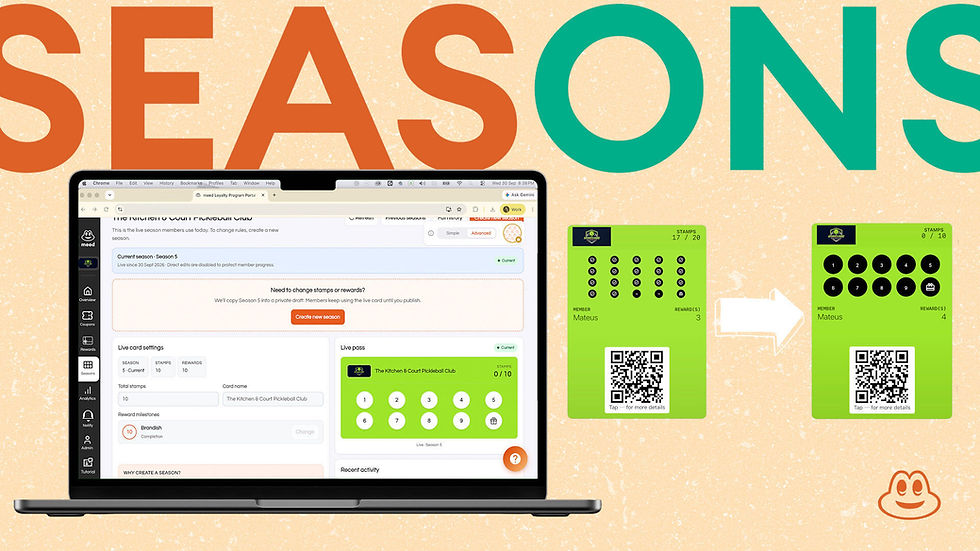
Seasons let you update your stamp card - new rewards, a different number of stamps, a fresh look - without disrupting members who are already collecting stamps.
Before you start: the meed for Business app needs to be updated to at least v2.0.9. It usually auto-updates, but there are some caveats - so if it doesn't work at first, check you have the latest meed for Business app.
Forcing an app update: open the App Store (iPhone) or Google Play (Android), search "meed for Business" and tap Update. Then close and reopen the app.
Editing your program: up to 5 members vs 6 or more
Up to 5 members: you can edit everything on your program's card, including rewards, but you may lose some stamp and reward data. At 6 members: the card and its rewards lock. To change anything after that, create a new season. A new season is the safe way to change a card members are collecting on: everyone keeps their stamps and earned rewards. Only one new season is free, then you need to upgrade to meed Pro. The portal does not warn you about this, so check your member count before you edit.
The idea
A season is one version of your stamp card. The card your members use today is the Current season. When you want to change the rules, you create a new season: meed copies your card into a private draft, and you publish it only when it is ready.
Use it to refresh an offer, bring in seasonal rewards, or adjust your card as your business changes.
Create a new season
Open the meed Business Portal and select Seasons in the sidebar. You will see your live card - the one members use today - marked Current.
Select Create new season. meed copies your live card into a private draft. Members keep collecting stamps on the live card until you publish.
Edit the draft settings: set the Total stamps (4 to 20 slots) and the Season name. Tap a stamp slot to add or remove a reward there - the last stamp is always the completion reward.
Attach rewards to the milestone slots. Select Change to pick an existing reward from your reward bank, then Apply. Remove clears a slot.
Need a fresh reward? Select Create new, choose the type (Discount, Cash voucher or Item), add the name, value, description, picture and reward expiry, then Create reward.
Not finished? Select Save draft and come back any time. Saving never touches the live card, and Continue editing draft on the Seasons page picks up where you left off.
When you are happy, select Publish changes. The current season ends and your draft becomes the new Current season - the card members see.
Screenshots
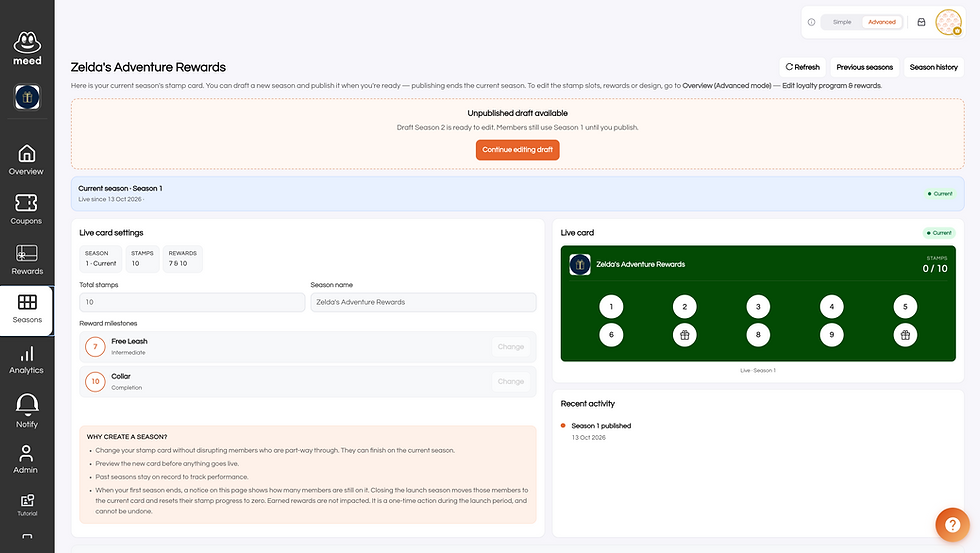
The Seasons dashboard: your current season, plus any unpublished draft waiting under Continue editing draft.

Editing a draft season: draft settings, reward milestones and the draft pass preview.

Changing a reward: pick an existing reward from your reward bank, then Apply.
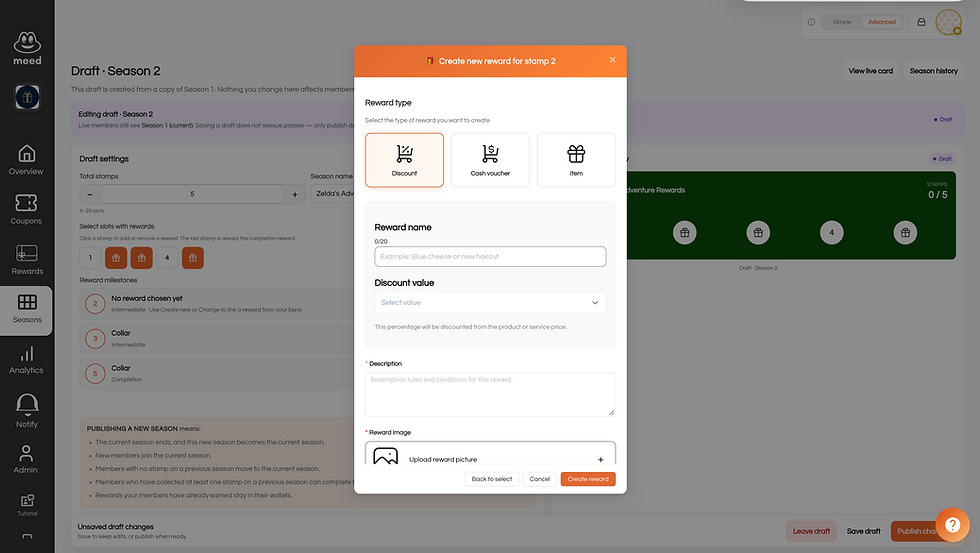
Creating a new reward: choose the type, then name, value, description, picture and expiry.
What your members see
New members start straight on the latest season. The same goes for existing members with no stamps yet.
Members mid-card keep every stamp and every earned reward. They finish the card they started, then move onto the current season.
Earned rewards are always kept. A new season never takes away a reward someone has already earned.
Season history
Select Previous seasons or Season history on the Seasons page to see every version of your card. Each season is labelled Draft, Current, Ended-in-use or Ended. Ended-in-use means some members are still finishing that card; Ended means everyone has moved on.
What it costs
Your first new season is free. To keep creating new seasons after that, upgrade to meed Pro.



Comments